
We know many of our readers sometimes face difficulties when trying to download or read novels from our website. Since we use different platforms (MediaFire, Dropbox, WordPress Media, and Google Drive for Web Specials), it can feel a little confusing at times.
This guide will help you understand each method step by step — so you’ll never get stuck again!
1. Downloading from MediaFire
- When you click the Download PDF button on our site, it may take you to a page like this:
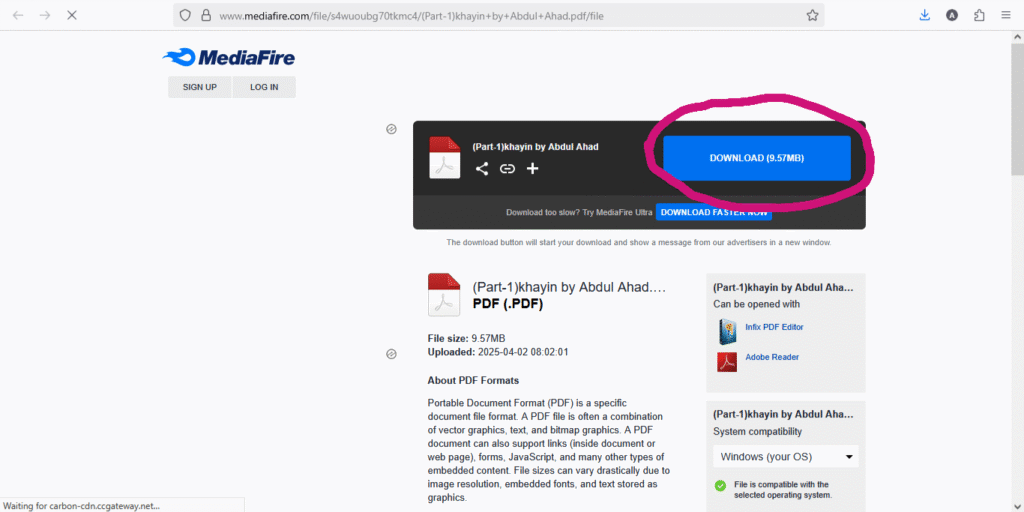
👉 Simply click the big blue “Download” button.
- Your download will start automatically.
- If it doesn’t, try refreshing the page or using a VPN (sometimes MediaFire is restricted in certain regions).
Note: Sometimes your browser may not show a message that the file is downloading or has finished downloading. If you don’t see any message, don’t worry — it might still be downloading. First, check your Downloads folder or File Manager. If the file isn’t there, then try downloading it again.
2. Downloading from Dropbox
- After clicking the Download PDF button, you’ll see a page like this:
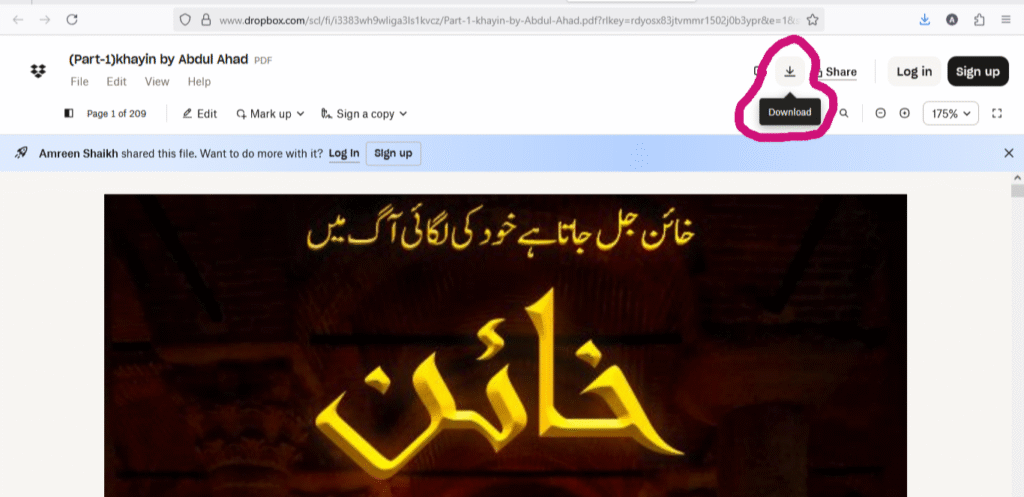
👉 Look for the “Download” option on the top-right corner.
- Choose Direct Download.
- Your file will then start downloading.
3. Downloading from Our Website’s Uploads
Recently, we’ve started uploading PDFs directly to our website for your convenience.
- When you click the Read Now button, you’ll be taken to a page that looks something like this:
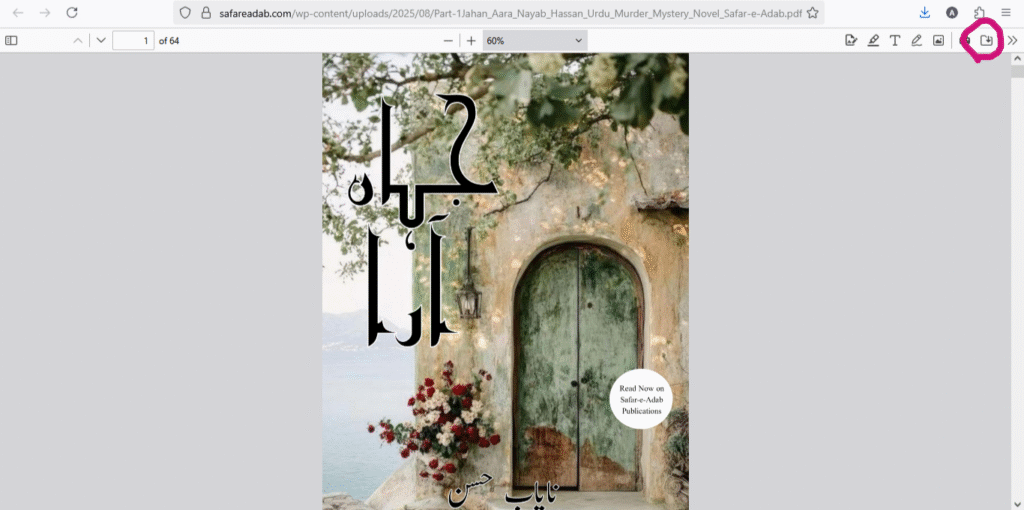
👉 Look for the tiny download folder and arrow button at the top-right corner of the PDF viewer.
- Clicking this will download the file to your device.
⚠️ Note: Some readers confuse this with Google Drive, but the difference is:
- Web Uploads or Media PDFs have a small download arrow at the top-right.
- Google Drive Web Specials (explained below) don’t have a download option.
4. Reading Web Special Novels (Google Drive – Read-Only PDFs)
For our Web Special Novels, we provide a read-only PDF link.
- You can read these online in your browser.
- They cannot be downloaded.
- But once the file has fully loaded on your screen, you can continue reading offline, even without internet (as long as you keep the tab open).
5. Broken or Missing Links
Sometimes on rare occassions, links may stop working. If you try different methods as mentioned above, and none of them work, kindly do this:
👉 Please report it to us via email at [email protected].
We’ll fix it as soon as possible so you can continue reading without interruptions.
Quick Recap:
- MediaFire → Big blue download button.
- Dropbox → “Download” option on the top-right.
- Web Uploads → Small arrow at top-right of the PDF viewer.
- Web Specials → Read-only online (no download option).
We hope this guide makes it easier for you to enjoy your favorite novels hassle-free! 💙
If you still face any issues, don’t hesitate to reach out to us.
Discover more from Safar-e-Adab
Subscribe to get the latest posts sent to your email.